
How to resize a PDF to A4
Published:
To convert a PDF to A4, each page is scaled to fit a 210 × 297 mm sheet: the content is shrunk or enlarged proportionally and centered. The original size can be anything — Letter, Legal, A3 or a custom-size scan.
Step by step
- 1Open “Resize PDF to A4” and add your document.
- 2Check that A4 is selected under “Size” — it’s selected by default.
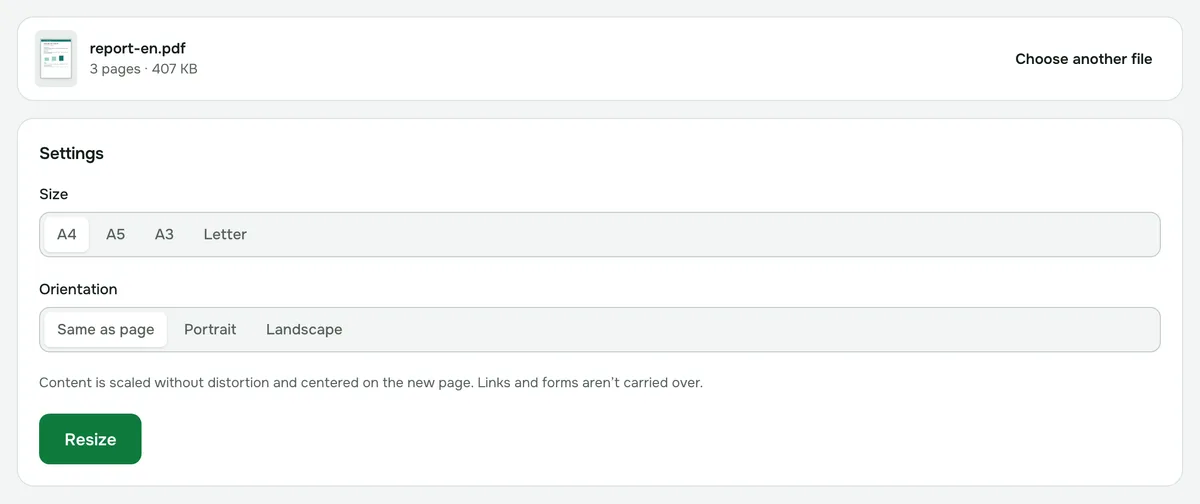
- 3Choose the orientation: “Same as page”, “Portrait” or “Landscape”.
- 4Click “Resize” and download the document.
What happens to the content
The whole page is scaled without stretching, so text and images keep their proportions. If the original page has different proportions from A4, blank margins appear around it.
For example, a Letter page converted to A4 gets narrow margins at the top and bottom, and a Legal page gets them on the sides. A3 has the same proportions as A4, so an A3 page is simply reduced to A4 with no margins — though the text gets smaller too.
Which orientation to choose
- “Same as page” — every page keeps its own orientation: wide pages become landscape A4, the rest portrait. Good for documents with inserted tables and diagrams.
- “Portrait” — all pages become vertical. Wide pages are reduced more, with margins above and below.
- “Landscape” — all pages become horizontal, for example for a presentation.
If you need A3, A5 or Letter
The “Size” setting also offers A5, A3 and Letter, so the same steps let you shrink a document to A5 for a booklet or enlarge it to A3 for bigger prints.
What isn’t carried over
Bookmarks, attachments, links and interactive forms aren’t kept in the new copy. If the document is password-protected and you know the password, remove it first with “Remove PDF password”. Documents can be up to 200 MB.
Is it safe?
The PDF is processed in your browser and isn’t uploaded to a server, so you can resize contracts and personal documents too.
Resize PDF to A4
Bring every PDF page to A4 — from Letter, Legal, A3 or a custom-size scan. Content is scaled without distortion.
Open “PDF to A4”