
How to add page numbers to a PDF
Published:
You can add page numbers to a PDF without Adobe Acrobat or the original Word file. The number is drawn on top of each page in the spot you choose. You can skip the cover and title page.
Step by step
- 1Open “Add page numbers to PDF” and add your document.
- 2Choose the number’s position and format.
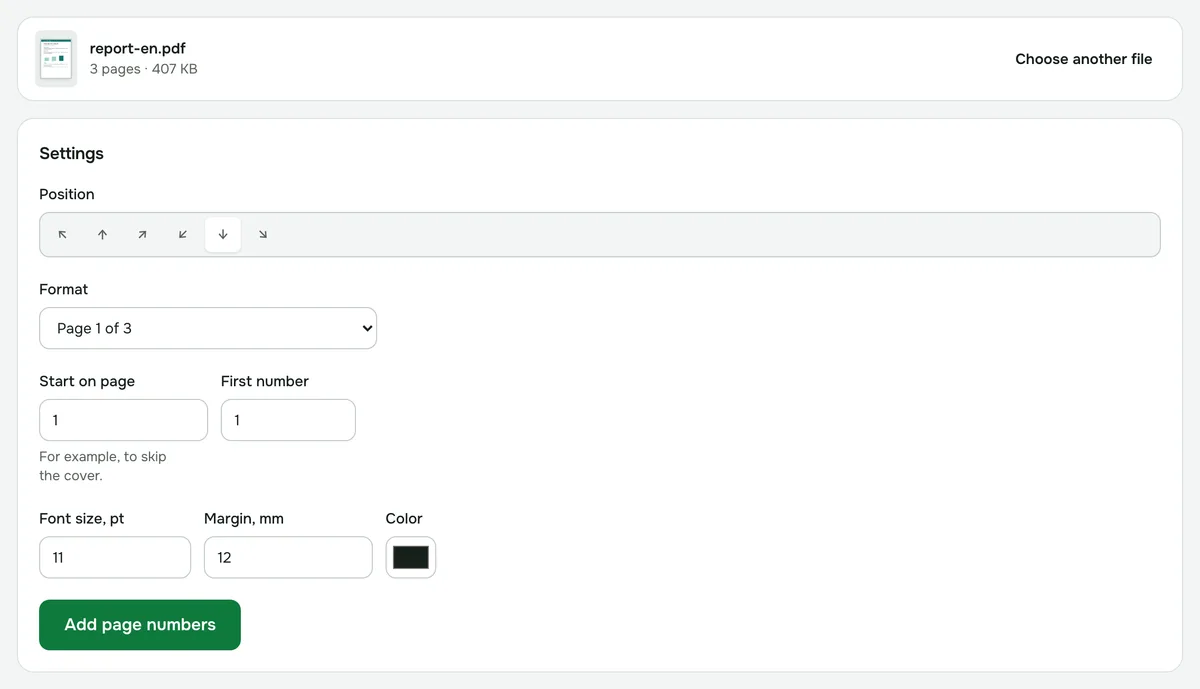
- 3Set which page to start on and which number to count from.
- 4Click “Add page numbers” and download the document.
Numbering formats
- “1” — just the number.
- “1 / 10” and “Page 1 of 10” — with the total page count.
- “Page 1”.
- “— 1 —” — a number between dashes, as in books.
The number goes at the top or bottom — centered or in a corner. You can adjust the font size, the margin from the edge and the color.
How to skip the cover or title page
Set “Start on page” to 2, for example, and the cover stays unnumbered. Use “First number” to choose where counting begins. If the title page counts as page 1, start on page 2 with the number 2.
If the document is password-protected
A password-protected PDF has to be unlocked first. If you know the password, remove it with the “Remove PDF password” tool, then number the copy.
Security
The document is processed in your browser and never uploaded to a server. It’s fine for a thesis or internal company documents.
Add page numbers to PDF
Add page numbers: position, format “1”, “1 of 10” or “Page 1”, and which page to start from.
Open “Page numbers”