
How to mirror a photo
Published:
To mirror a photo, add it to the “Flip image online” tool — horizontal flip is already on, and the preview shows the result right away. All that’s left is to click “Save” and download the file.
Step by step
- 1Open “Flip image online” and add one or more images.
- 2Keep “Horizontal” on or switch on “Vertical” — the preview updates instantly.
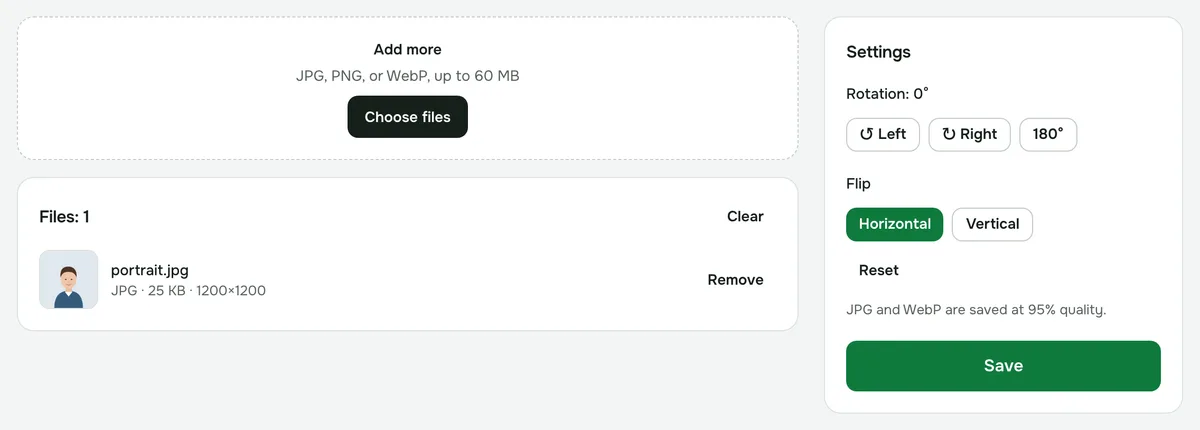
- 3Click “Save” and download the result.
Horizontal or vertical
- Horizontal — the left and right sides swap places, like in a mirror. This is how you fix mirrored selfies and backwards text.
- Vertical — the top and bottom swap places, like a reflection in water.
- You can turn on both at once — the result is the same as rotating by 180°.
Why selfies come out mirrored
The front camera shows you as a mirror would — that’s what people are used to. Many phones save the shot that way too, so text on clothes and signs in the photo reads backwards. A horizontal flip brings the picture back to how other people see it.
On iPhone and many Android phones you can turn this off in the camera settings (“Mirror Front Camera” or a similar option), but photos you’ve already taken have to be fixed by hand.
If the photo is also sideways
The same tool has 90° and 180° rotation: the flip and the rotation are applied together in one go. To learn more about rotating, see “How to rotate a photo online”.
Quality and privacy
The format stays the same: JPG stays JPG, PNG stays PNG, WebP stays WebP. PNG is lossless, JPG and WebP are saved at 95% quality. You can flip several photos at once and download them as a single ZIP archive. Files are never uploaded to a server.
Flip image online
Mirror an image horizontally or vertically — for example, a front-camera selfie. Horizontal flip is already on.
Open “Flip image”