
How to convert a PDF to Word
Published:
To edit a PDF like a regular document, convert it to Word (DOCX). Text, paragraphs, headings and bold are preserved. After that, you can edit the document like any other.
Step by step
- 1Open “PDF to Word” and add your document.
- 2If needed, enter the pages, for example 1–3, 5.
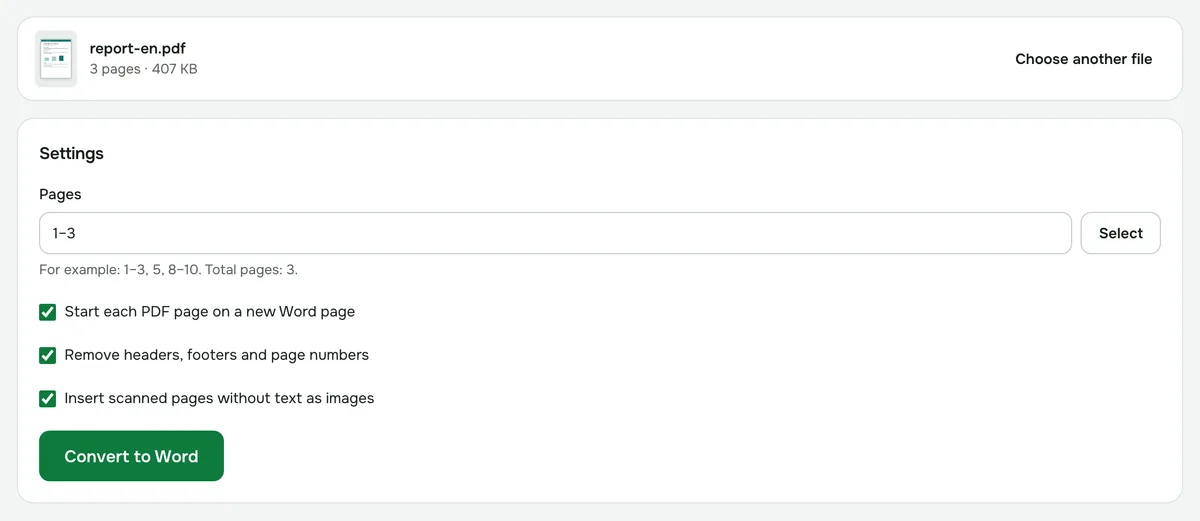
- 3Click “Convert to Word” and download the DOCX file.
What is preserved
- Text, paragraphs, headings, bold and font size.
- Words hyphenated at line ends are joined back together.
- Headers, footers and page numbers are removed by default — you can turn this off.
Tables, columns and images inside the text aren’t rebuilt: the text flows top to bottom.
If the PDF is a scan
A scan has no text, only pictures of pages. Such pages are inserted into Word as images. To get editable text from a scan, run it through “Recognize text (OCR)” first.
Is it safe?
The document is processed in your browser and never uploaded to a server.
PDF to Word
Turn a PDF into an editable Word document: paragraphs, headings and bold text are kept.
Open “PDF → Word”