
How to change a photo’s aspect ratio
Published:
You change the aspect ratio by cropping: pick a ratio such as 1:1 or 9:16, move the frame over the part of the picture you want and click “Crop”. The photo is never stretched — the extra at the edges is simply removed.
Step by step
- 1Open “Change image aspect ratio” and add your image.
- 2Choose a ratio under “Aspect ratio” and move the frame with your mouse or finger.
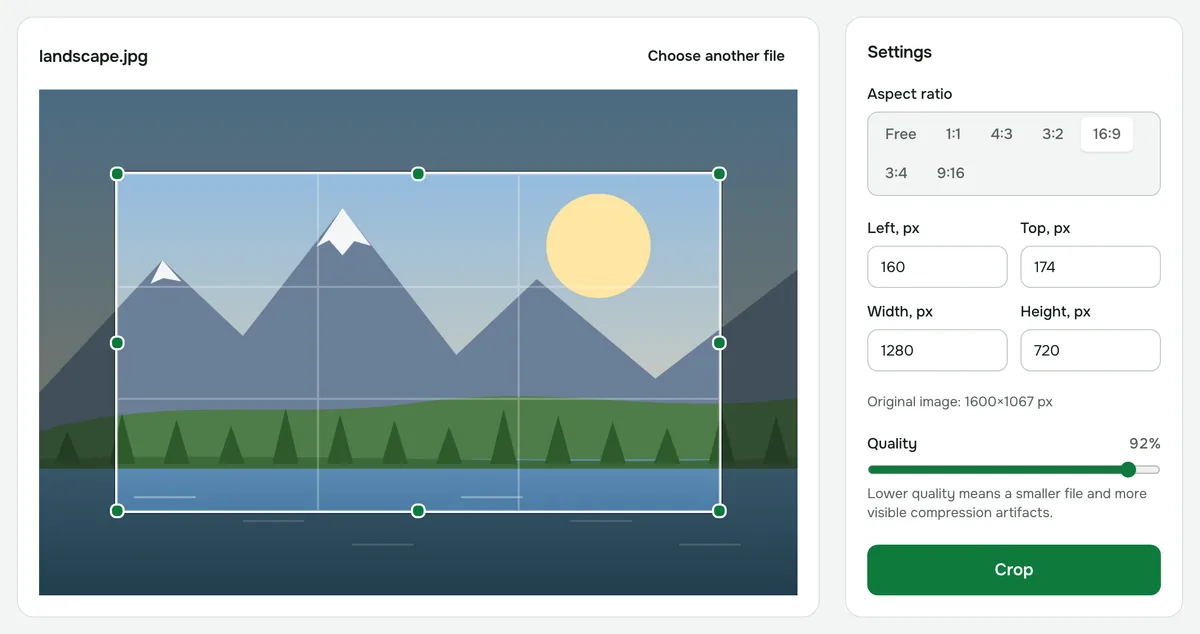
- 3Click “Crop” and download the result.
Which ratio to pick
- 1:1 — a square for avatars and square posts.
- 9:16 — a full-screen vertical frame for Stories and Reels.
- 16:9 — a horizontal format for YouTube thumbnails and screens.
- 4:3 and 3:2 — classic photo proportions; 3:4 is the vertical version of 4:3.
If the ratio you need isn’t listed
For example, 4:5 for a portrait post. Choose “Free” and type the width and height in pixels in the ratio you need — say, 1080 and 1350 px. The frame can’t go past the edges of the photo, so the numbers must not exceed the original size, which is shown in the settings.
What happens to the photo
The image isn’t squeezed or stretched: people and objects keep their proportions. The more the new ratio differs from the original, the more is cut off at the edges — a landscape shot turned into 9:16 becomes a narrow vertical strip, so decide in advance what needs to stay in the frame.
The file format stays the same: JPG stays JPG, PNG stays PNG, WebP stays WebP. For JPG and WebP you can set the quality.
Limits and privacy
Images are cropped one at a time, files can be up to 60 MB, and JPG, PNG and WebP are supported. Cropping runs in your browser — your photo is never uploaded to a server.
Change image aspect ratio
Make a photo 16:9, 1:1, 4:3, 3:2, 3:4 or 9:16 — for a cover, a story or an avatar. The extra is cropped; the image is never stretched.
Open “Aspect ratio”