
How to rotate PDF pages and save them
Published:
To rotate a PDF page and keep it that way, select the pages, choose an angle and save a new document. The rotation is written into the file itself, so the pages open the right way up in any viewer.
Step by step
- 1Open “Rotate pages” and add your PDF.
- 2Select pages on the thumbnails or type their numbers. To rotate the whole document, select none.
- 3Click “90° clockwise”, “90° counterclockwise” or “180°” — the thumbnails show the result right away.
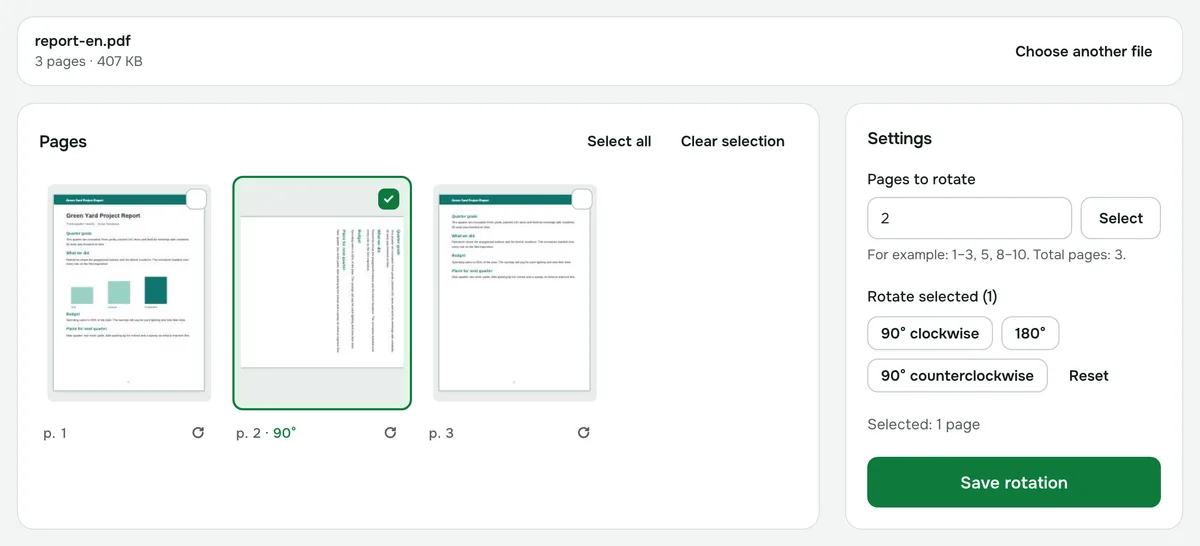
- 4Click “Save rotation” and download the document.
How to fix upside-down scanned pages
If the scanner fed some sheets upside down, select just those pages and rotate them “180°”. For pages lying on their side, use 90° clockwise or counterclockwise, depending on where the top of the page points.
To turn a single page, use the arrow button under its thumbnail: each click adds another 90° clockwise.
All pages or just some
If nothing is selected, the rotation applies to every page. You can also type numbers in the “Pages to rotate” field: separate them with commas and use a dash for ranges, for example “1–3, 5, 8–10”. If you get an angle wrong, “Reset” puts all pages back the way they were.
Will it damage the document?
No. Page content isn’t redrawn — only the orientation changes, so text stays sharp, and if it could be selected and copied before, it still can. The original file isn’t changed: you download a new PDF.
Bookmarks, attachments and interactive forms aren’t carried over to the rotated document. A password-protected PDF has to be unlocked first: if you know the password, remove it with the “Remove PDF password” tool.
If the pages are also out of order
Rotating doesn’t change page order. If a scan is also shuffled, put the pages in order with “Reorder pages”.
Is it safe?
The document is processed in your browser and never uploaded to a server, so it’s fine for contracts and scanned IDs.