
How to save PDF pages as JPG images
Published:
You can save each page of a PDF as a separate JPG image. That’s handy for a slide deck, a chat message or a social media post. Save every page or only the ones you need.
Step by step
- 1Open “PDF to JPG” and add your document.
- 2Select pages on the thumbnails or type their numbers, for example 1–3, 5.
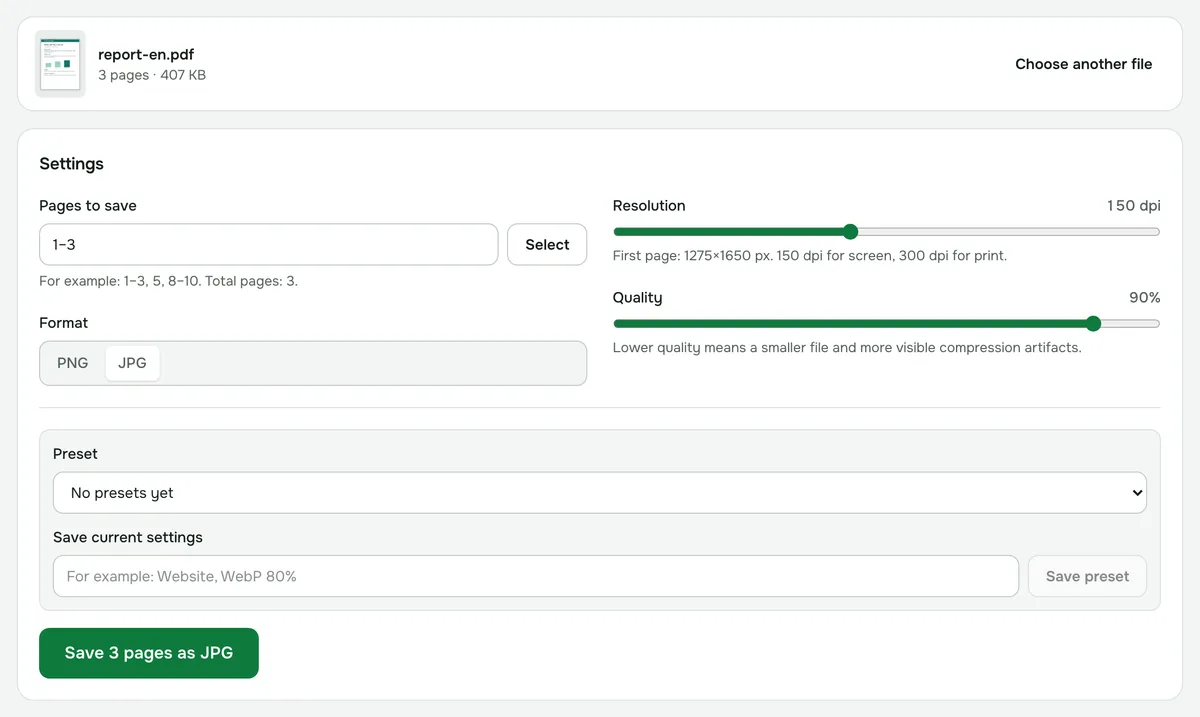
- 3Choose the resolution and save the pages — one by one or all at once as a ZIP.
Which resolution to choose
- 150 dpi (the default) — for screens, chat apps and email.
- 300 dpi — for printing; the files will be noticeably larger.
JPG or PNG?
JPG is more compact and suits pages with photos. For small text, diagrams or exact colors without artifacts, use “PDF to PNG”.
Password-protected PDFs
Remove the protection first with the “Remove PDF password” tool, if you know the password.
Privacy
Pages are rendered in your browser; the document is never uploaded to a server.