
How to extract pages from a PDF
Published:
To extract pages from a PDF, add the document, select the pages you need on the thumbnails or type their numbers, for example 1–3, 5, and click “Extract pages”. You get a new PDF with only those pages, and the original file isn’t changed.
Step by step
- 1Open “Extract pages” and add your PDF.
- 2Select pages on the thumbnails or type their numbers: 1–3, 5, 8–10.
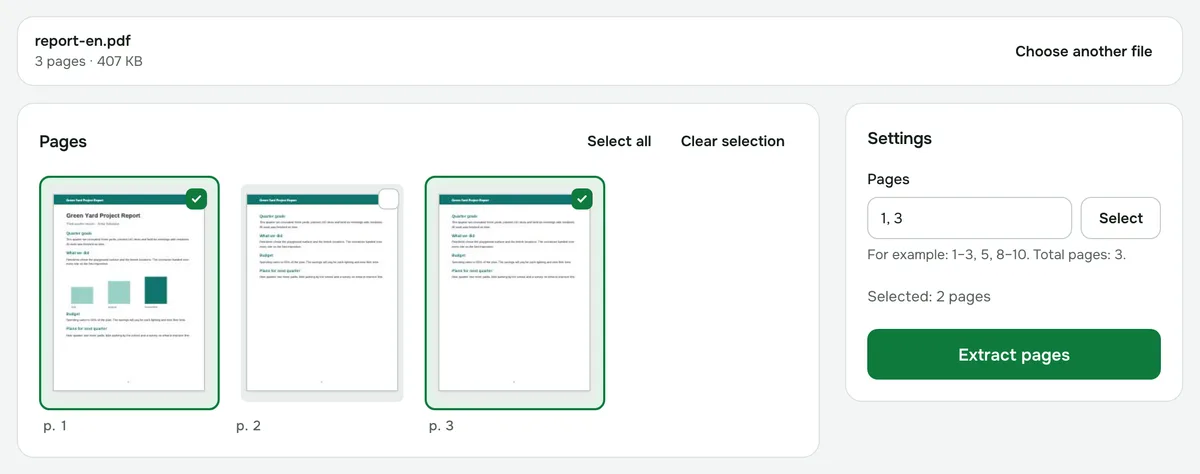
- 3Click “Extract pages” and download the new document.
How to enter page numbers
- Separate single pages with commas: 2, 5, 9.
- Use a dash for a range: 4–7 means pages 4 through 7.
- You can mix them: 1–3, 5, 8–10. The total number of pages in the document is shown below the field.
- The thumbnails and the field are linked: selections turn into numbers right away, and vice versa.
- Pages in the new file keep the same order as in the original document, even if you type the numbers out of order.
Extract, split or delete
- “Extract pages” — the selected pages are combined into one new PDF.
- “Split PDF” — each page (all of them or only the selected ones) is saved as a separate PDF, and you download them as a single ZIP archive.
- “Delete pages” — the opposite: you mark the pages you don’t need, and the rest stay in the document.
What the new file keeps
Pages are copied as they are: text, images and quality don’t change, and nothing is recompressed. Bookmarks, attachments and interactive form fields aren’t carried over to the new file.
If you need the pages in a different order or want to add pages from another document, use “Reorder pages” or “Merge PDF” after extracting.
Limits and privacy
Documents can be up to 200 MB. A PDF with an open password can’t be processed — remove the protection first. The file is never uploaded to a server: pages are extracted right in your browser.