
How to fill in a PDF form online
Published:
If a PDF has interactive fields — boxes to type in, checkboxes, dropdowns — you can fill it in right in your browser and save it. If there are no fields and it’s just a printed form, you can type text onto it in a PDF editor.
Step by step
- 1Open “Fill in a PDF form” and add the document — we’ll show all its fields.
- 2Fill in the fields, tick the checkboxes and pick values in the dropdowns.
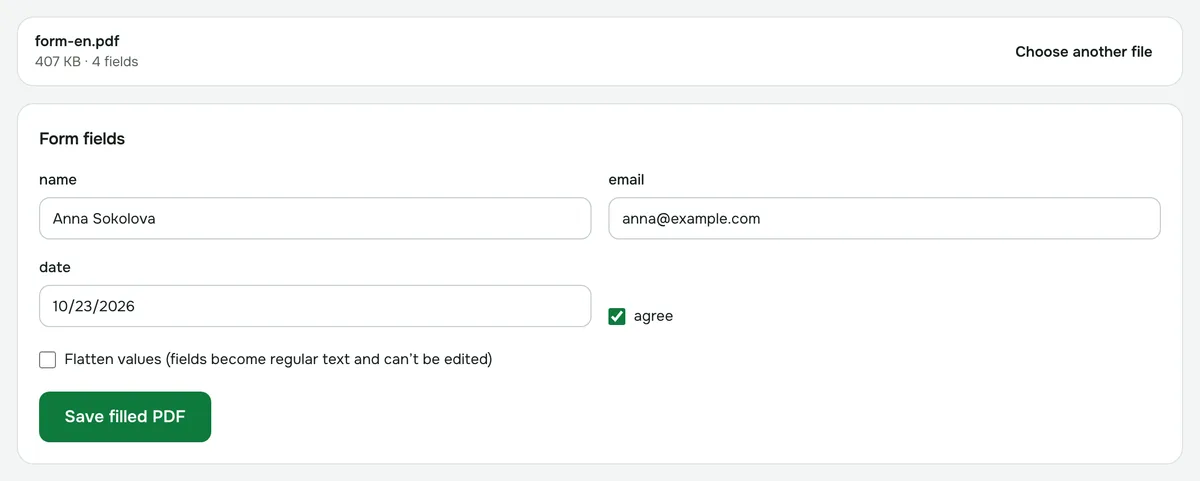
- 3Click “Save filled PDF” — flattening the values if you like.
How to tell if a PDF has fields
Add the document: if it has fields, they appear as a list. If it has none, it’s a regular printed form. Open “Edit PDF” and add text where it’s needed.
Accented letters and Cyrillic
Values are drawn with a font that covers Latin letters with accents (é, ñ, ü, ç) and Cyrillic. Names like José or Müller display correctly in any PDF viewer.
How to prevent further editing
Before saving, tick “Flatten values”. The fields become regular text on the page, so the recipient can’t change them by accident.
Which forms aren’t supported
XFA forms — a special format that usually opens only in Adobe Reader — aren’t supported. Regular forms with fields (AcroForm) work fully: text fields, checkboxes, radio buttons and dropdowns.
Fill in a PDF form
Applications and forms with fields: type values, tick checkboxes and save.
Open “Fill in a form”