
How to remove a password from a PDF
Published:
If you know the password, you enter it once and save a copy of the PDF that opens without a password or restrictions. If the document opens freely but blocks printing or copying, you don’t need a password at all.
Step by step
- 1Open “Remove PDF password” and add your document — the tool checks right away what kind of protection it has.
- 2If the document needs a password, type it in the “Document password” field. If it only has restrictions, skip this step.
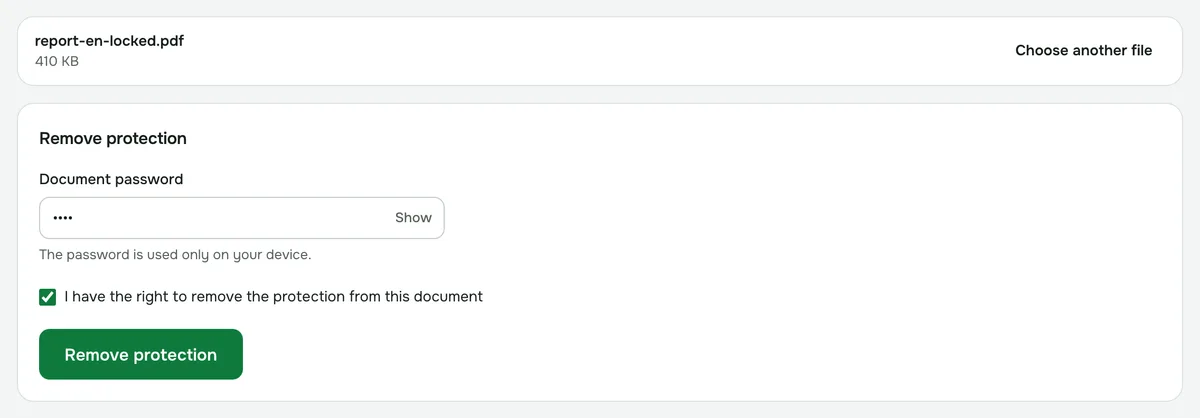
- 3Tick “I have the right to remove the protection from this document” and click “Remove protection”.
- 4Download the unlocked copy.
Two kinds of PDF protection
- An open password: without it, the document won’t open in any app. To remove this kind of protection, you have to enter the password.
- Restrictions: the document opens on its own, but printing, copying text or editing is blocked. These can be removed without a password.
You see which kind of protection the file has as soon as you add it. If the PDF isn’t protected at all, the tool tells you there’s nothing to remove.
If you forgot the password
This tool can’t recover a forgotten open password: we don’t guess or crack passwords. The contents of such a PDF are encrypted and can’t be read without the password.
If the document came from a bank, a utility or another organization, the password hint is usually in the email or in your online account. Otherwise, ask the sender for the password or for an unprotected copy.
If the password is rejected, check your keyboard layout and Caps Lock: passwords are case-sensitive.
What the copy keeps
All pages are kept in full. Bookmarks, attached files and form fields don’t carry over to the copy. The original file isn’t changed, so keep it if you need them.
Rights and privacy
Only remove protection from documents you have the rights to. The document is decrypted in your browser on your device: neither the file nor the password is sent to a server.
To protect the document again, for example before sending it on, use the “Password-protect PDF” tool.
Remove PDF password
If you know the password, save a copy of the document without the password and restrictions.
Open “Remove password”