
How to extract text from a photo or image
Published:
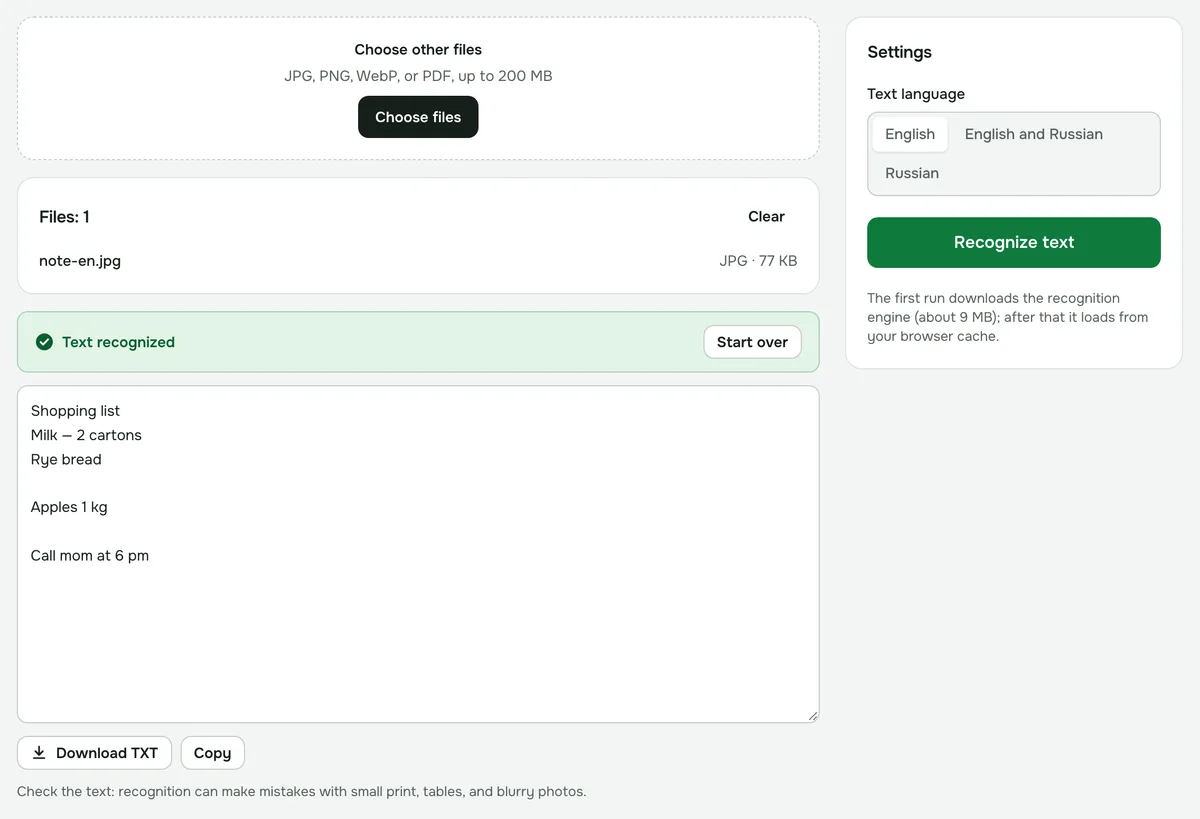
To get text out of a photo, screenshot or scan, you need text recognition (OCR). It finds the letters in an image and turns them into plain text. You can then copy it, edit it or save it as a file.
Step by step
- 1Open “Recognize text (OCR)” and add a photo, screenshot, scan or PDF.
- 2Choose the text language — for documents that mix both, pick “English and Russian”.
- 3Click “Recognize text”.
- 4Copy the text or download it as a .txt file.
How to shoot a page for fewer errors
- Use good, even light, with no glare and no shadow from your phone.
- Hold the phone parallel to the page: a strong tilt distorts the lines.
- Get closer to small print — letters should stay sharp when you zoom in.
- Screenshots are recognized best: they have no glare or tilt.
For a paper document, capture it with the “Document scanner” first. It finds the page, straightens the perspective and whitens the paper. You can then recognize the resulting PDF.
Multi-page PDFs
You can recognize the whole PDF or choose pages, for example 1–3, 5. Each page takes a few seconds. If the PDF already has a text layer — you can select the text with your mouse — you don’t need OCR. The “PDF to text” tool pulls the text out instantly and without mistakes.
Limitations
- Languages: English, Russian, or both at once.
- Printed text is recognized; handwriting is not.
- Lines and paragraphs are kept; tables come out row by row as plain text.
- Sharp scans at 200 dpi or more give the best results.
Your files stay with you
Recognition runs right in your browser. The recognition engine downloads from our site on the first run, and your photos are never sent anywhere.
Recognize text (OCR)
Text from scans and photos — Russian and English. Recognition runs on your device.
Open “Recognize text”