
How to remove the background from a photo
Published:
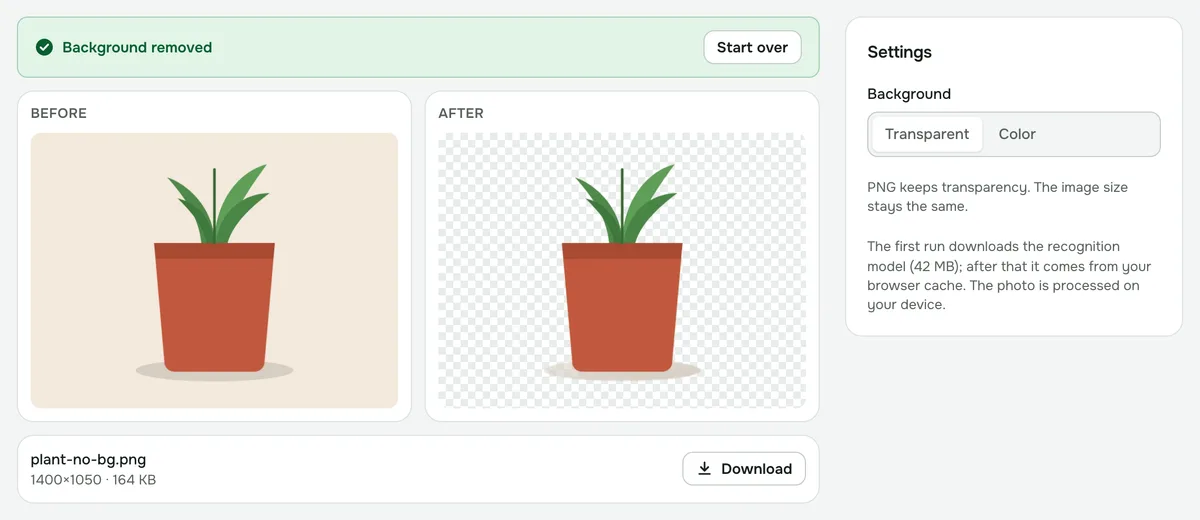
A neural network removes the background. It finds the main subject — a person, a pet or a product — and separates it from the background. You get a PNG with a transparent background at the original resolution, or the photo on a solid color.
Step by step
- 1Open “Remove background from photo” and add a photo.
- 2Choose the background: “Transparent” or “Color”.
- 3Click “Remove background” and download the result.
Which photos work best
- Photos with one clear subject: a portrait, a pet, a product on a table.
- The subject clearly differs from the background in color and brightness.
- Fine hair and transparent objects, or ones that blend into the background, may be cut out less precisely.
Transparent background or a color?
A transparent PNG suits design work, slide decks and online stores where the background is added later. White or another color works for ID photos, product listings and profile pictures. You can change the color without running recognition again.
Why the first run takes longer
The first run downloads the recognition model; after that it comes from your browser cache. On a phone or a slow computer, processing can take up to a minute. Everything is computed on your device.
Privacy
Unlike most background removal services, your photo is never sent to a server.
Remove background from photo
A neural network separates a person, animal or object from the background — get a transparent PNG or a background color of your choice.
Open “Remove background”