
How to delete pages from a PDF
Published:
You don’t need Adobe Acrobat to delete a page from a PDF. Just mark the pages you don’t need and save the document without them. The original file isn’t changed — you get a new PDF, and the remaining pages keep their order.
Step by step
- 1Open “Delete pages” and add your document.
- 2Mark the unwanted pages on the thumbnails or type their numbers, for example 2, 5–7.
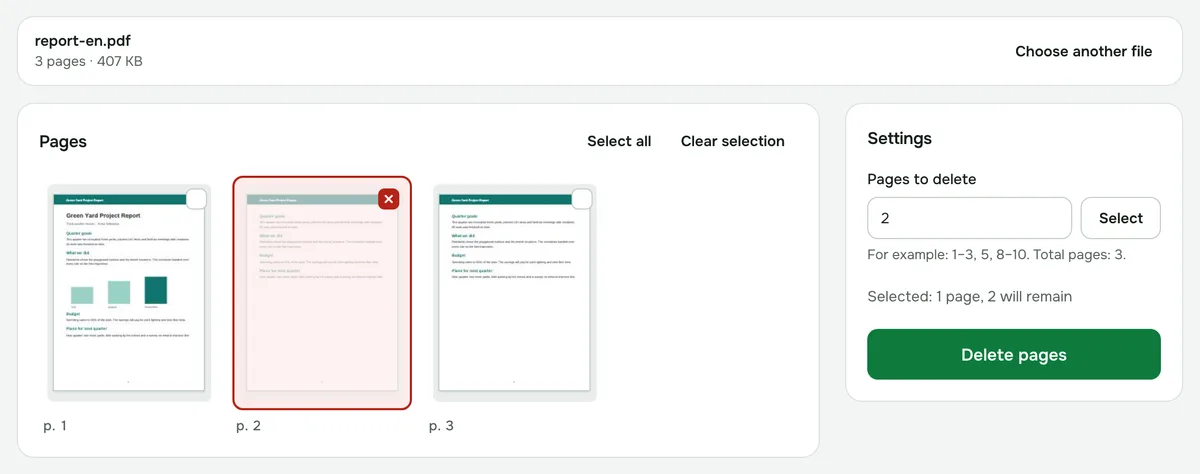
- 3Click “Delete pages” and download the new document.
How to enter page numbers
Separate numbers with commas and ranges with a dash: “1–3, 5, 8–10”. If a number is outside the document, the tool tells you what to fix.
If you’d rather keep just a few pages
When you need only two or three pages from a long document, “Extract pages” is easier. Select the pages you want and get a separate PDF with just them. To cut a document into single pages, use “Split PDF”.
Password-protected PDFs
A protected document has to be unlocked first. If you know the password, remove it with the “Remove PDF password” tool.
Is it safe?
The document is processed in your browser and never uploaded to a server. That makes it fine for contracts and personal documents.
Delete pages
Mark the pages you don't need on the thumbnails or type their numbers.
Open “Delete pages”