
How to crop a photo online
Published:
To crop a photo, add it to the tool, drag the frame over the part you want to keep and click “Crop”. Everything outside the frame is removed, and the rest isn’t stretched or squeezed. There’s nothing to install — cropping happens right in your browser.
Step by step
- 1Open “Crop image” and add a JPG, PNG or WebP photo.
- 2Frame the part you need: drag the corners and edges, or move the whole frame.
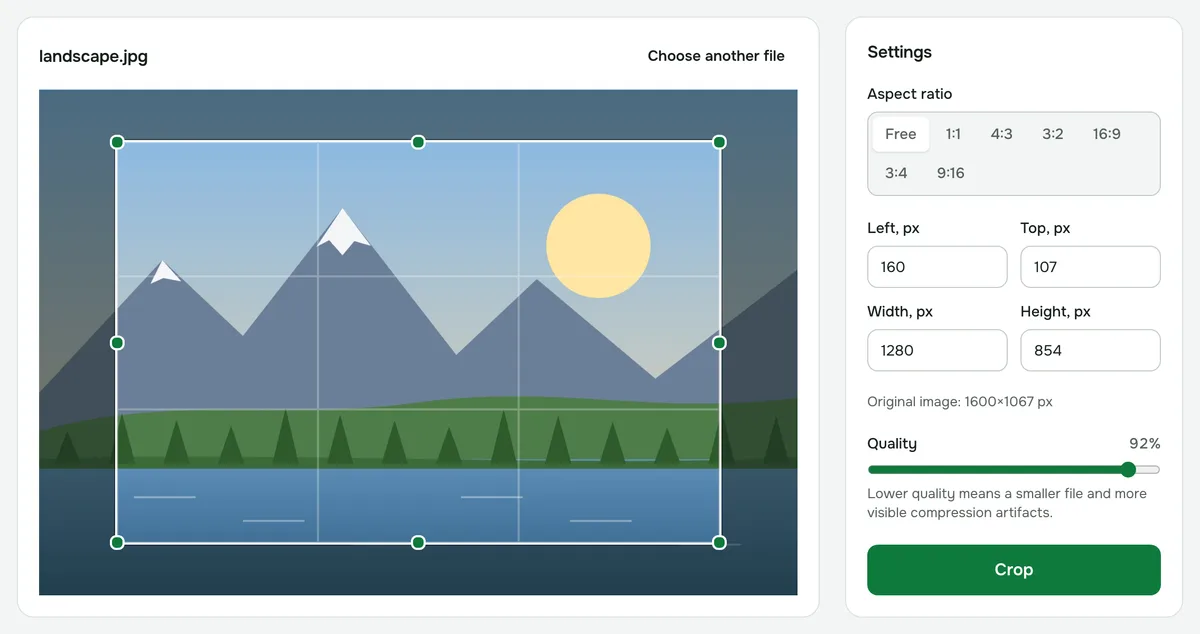
- 3If needed, pick an aspect ratio or type the exact size in pixels.
- 4Click “Crop” and download the result.
Three ways to set the frame
- With your mouse or finger. Drag a corner or edge of the frame to resize it, or drag the middle to move it. It works the same way on a phone.
- By aspect ratio. Under “Aspect ratio”, choose 1:1, 4:3, 3:2, 16:9, 3:4 or 9:16 — the frame takes that shape right away, and you can then move and resize it without breaking the ratio. “Free” removes the restriction.
- With numbers. The “Left, px”, “Top, px”, “Width, px” and “Height, px” fields set the frame in pixels — handy when you need an exact size, such as 1200×630 px. The original size of the photo is shown below the fields.
How to crop more precisely
You can move the frame with the arrow keys — by 1 pixel, or by 10 with Shift held down. The grid over the frame divides it into thirds: the main subject usually goes on the grid lines or where they cross.
If you need a social media format — 1:1 for an avatar, 9:16 for Stories, 16:9 for a cover — the separate “Change image aspect ratio” tool is more convenient. For ID photos, there’s “3×4 photo online”.
Quality and format
The file format stays the same: JPG stays JPG, PNG stays PNG, WebP stays WebP. PNG loses no quality at all, and for JPG and WebP you can choose the quality in the settings.
Cropping doesn’t add sharpness: if you cut a small piece out of a large photo, it has exactly as many pixels as that part of the original had.
Limits and privacy
Images are cropped one at a time — each photo gets its own frame. Files can be up to 60 MB. Your photo is never uploaded to a server: everything happens on your device.
Crop image
Select an area with the mouse or pick an aspect ratio: 1:1, 4:3, 16:9 and more.
Open “Crop”