
How to edit text in a PDF
Published:
A PDF isn’t a Word file. Its text is stored as blocks placed on the page, not as one flowing document. The editor changes that text itself — no white boxes painted on top, and pages don’t turn into images. That’s all you need for text fixes. To rewrite a whole document, converting the PDF to Word is easier.
Step by step
- 1Open “Edit PDF” and add your document.
- 2Click a text block, then double-click or press Enter and fix the text right on the page. To replace a word throughout the document, press Ctrl/⌘ F.
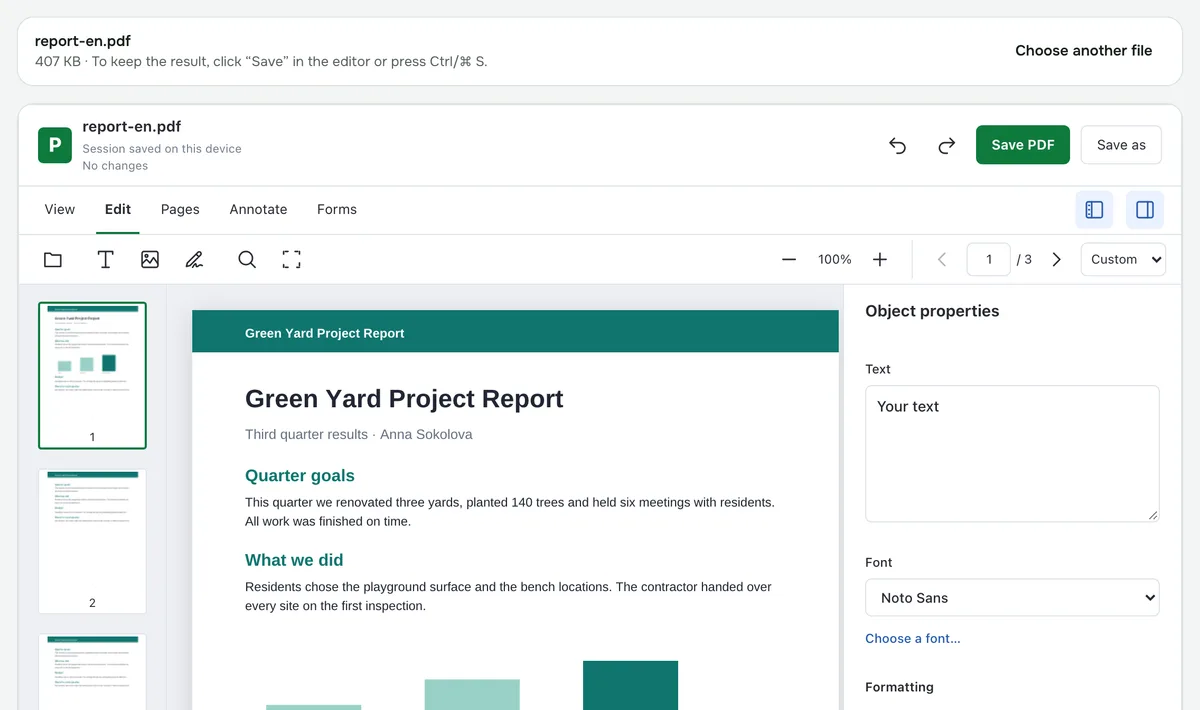
- 3Add text, insert images and move them around; Ctrl/⌘ Z undoes an action.
- 4Click “Save” or press Ctrl/⌘ S. In Chrome and Edge you can save straight to disk; in other browsers the PDF downloads.
How text editing works
Your new text stays real text: you can select it, copy it and find it with search. By default the document’s own font is kept. If it lacks the letters you type, the text is set in a similar font of the same style — for example Liberation Serif for Times New Roman or Carlito for Calibri; you can also pick your own font: upload a TTF/OTF file or use one installed on your computer.
A double click opens the whole paragraph, even when the program that made the PDF split it into pieces: lines reflow as you edit, and the first-line indent, justified alignment and bold words inside the paragraph are kept. Whatever sits below in the same column moves down. You can merge and split paragraphs. If an edit would overlap other content, the editor shows a preview and asks you to confirm.
What else the editor can do
- Add text, an image or a drawn signature; align, copy and lock objects.
- Leave comments: highlight, underline, strikethrough, sticky notes, arrows and shapes.
- Fill in form fields, and rotate, delete, reorder or extract pages.
When text can’t be edited
A scan has no text, only a picture of the page, so run OCR first. Text doesn’t flow onto the next page. A document that needs a password to open must be unlocked first; if the file only forbids editing (common for receipts and statements), the editor lifts that restriction itself when opening it.
How to hide sensitive data
In Annotate mode, click “Redact” and drag a box over what needs to be hidden. Until you save, you can move or delete the black box. On save, a page with a box becomes an image, and everything under the box — text, images, form field values — is truly removed from the file, not just covered. Text on that page can no longer be selected or searched; other pages stay as they are.
Is it safe?
The document is edited in your browser and never uploaded to a server.
Edit PDF
Edit the text in your PDF, add images, a signature and comments, securely redact data, fill in forms and rearrange pages.
Open “PDF editor”