
How to convert PNG to WebP, and why
Published:
Add your PNG to the “PNG to WebP” tool, pick a quality and download the result — a transparent background stays transparent. WebP files are usually smaller than PNG, which makes them a good fit for websites where page speed matters.
Step by step
- 1Open “PNG to WebP” and add your file: drag it in or click “Choose files”.
- 2Set the quality and, if needed, a new image size.
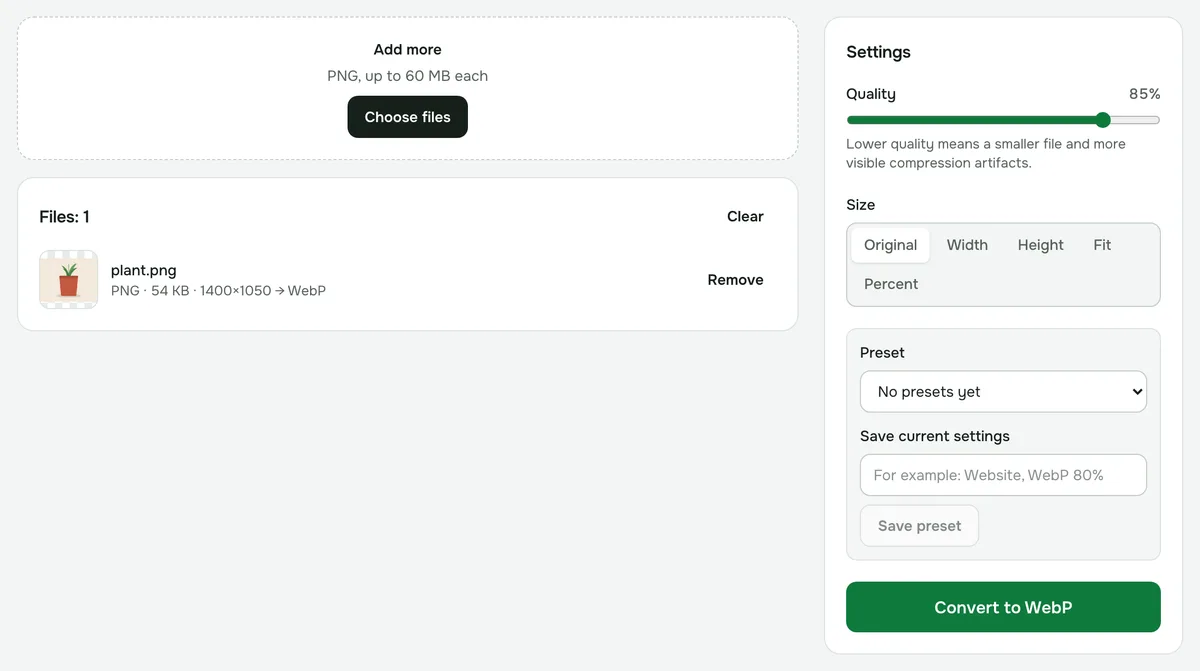
- 3Click “Convert to WebP” and download the result — you’ll see the size before and after.
What WebP is and why use it
WebP is an image format built for the web. It compresses images more than PNG does and, unlike JPG, supports transparency. A logo, icon or screenshot with a transparent background stays transparent after conversion but takes up less space, so pages that use it load faster.
WebP is most often used for images on websites: banners, illustrations, product thumbnails.
Which quality to choose
Quality goes from 10 to 100%. The lower it is, the smaller the file, but the more visible the compression artifacts — especially on text, thin lines and sharp edges. Start with the default and compare the result with the original; if the file is still too big, lower the quality or the dimensions.
When WebP won’t help
- The result can sometimes be larger than the original — we show an honest comparison, and in that case it’s better to keep the PNG.
- Some apps and websites don’t accept WebP. If you need to upload the file somewhere, check which formats it supports first.
- If the image is bigger than it will be shown on the page, shrink its dimensions during conversion — this often saves more than lowering the quality.
- Metadata (EXIF, location) isn’t copied to the WebP file.
Limits and privacy
Files can be up to 60 MB. Without an account you convert one image per run; with a free account, batches of up to 200. Conversion runs in your browser — your images are never uploaded to a server.